Settings
A plugin is one feature you can turn on: Compose (the course assistant), an LMS, an online drive, a team-chat bot, or interactive activities. See Supported integrations for which ones Sparkth connects to. Plugins are per user: turning one on or configuring it affects only your account.
Turn a plugin on
- Open Settings from the sidebar.
- Flip the switch next to the plugin.
Configure a plugin
Most plugins need settings before they do anything, such as an AI key or your LMS address.
- Turn the plugin on. The sliders button next to the switch stays disabled until you do.
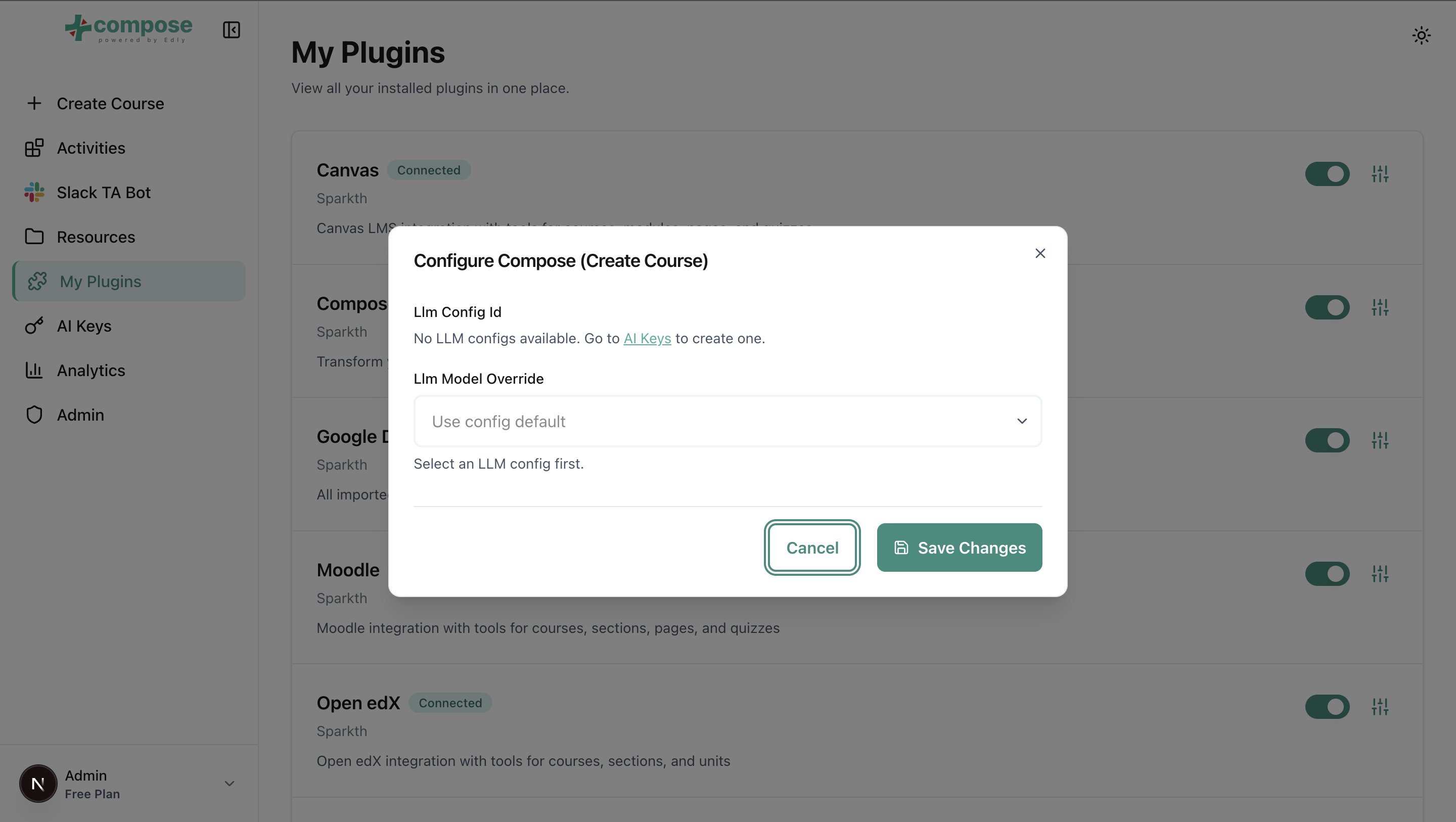
- Click the sliders button. A "Configure" window opens with the plugin's fields.
- Fill in the fields and click Save Changes.
A saved password or key shows as dots. To change it, click Replace and type the new one; leaving it alone keeps the saved one. Clicked Replace by mistake? Click Keep stored to go back to the saved one.
Enabled is not configured
Enabled only means the plugin is turned on. It does not check your credentials or your key. Compose, for example, does nothing until you select an AI key in its configuration: see AI keys.